| Sv translation | ||||||
|---|---|---|---|---|---|---|
| ||||||
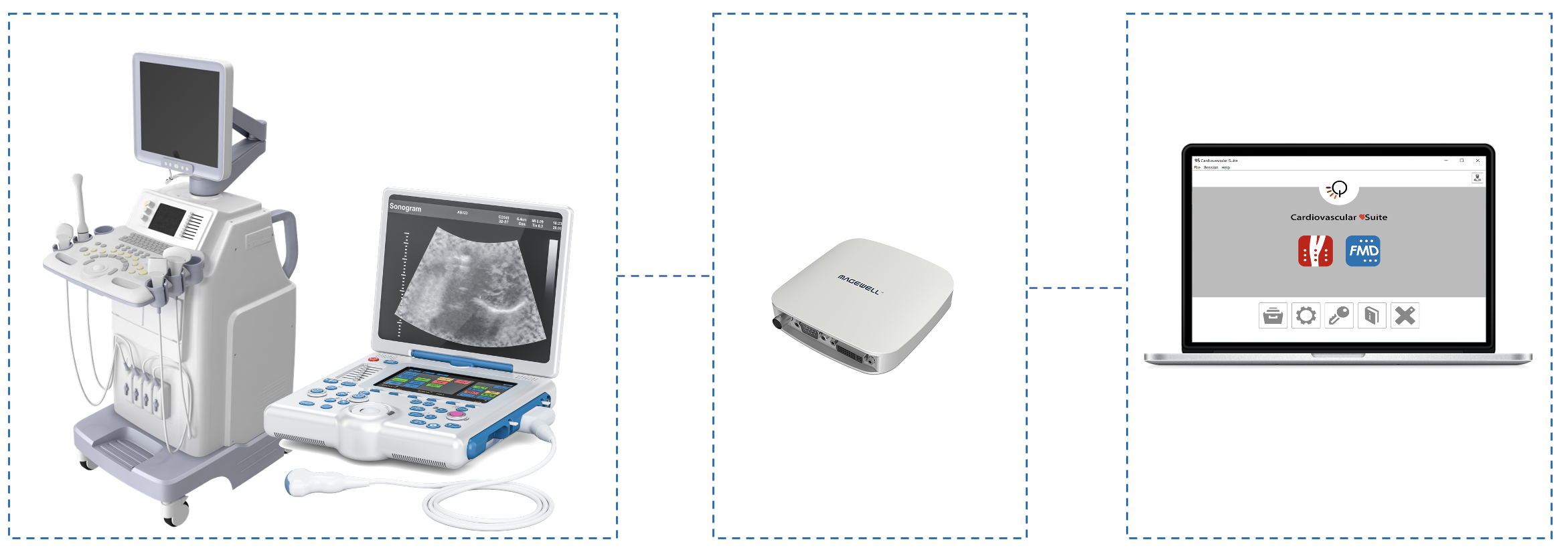
In order to have real-time analysis, the computer must receive in real-time the images generated by the ultrasound imaging device. For standard ultrasound devices, the computer must be connected to the video output of the ultrasound device by using a video capture device. For some specific ultrasound devices, the video capture device is not needed and these devices are directly connected to the computer by USB or by WiFi. A video capture device is needed to connect the computer with the ultrasound system and perform real-time analysis. Quipu recommends the Magewell USB Capture AIO.
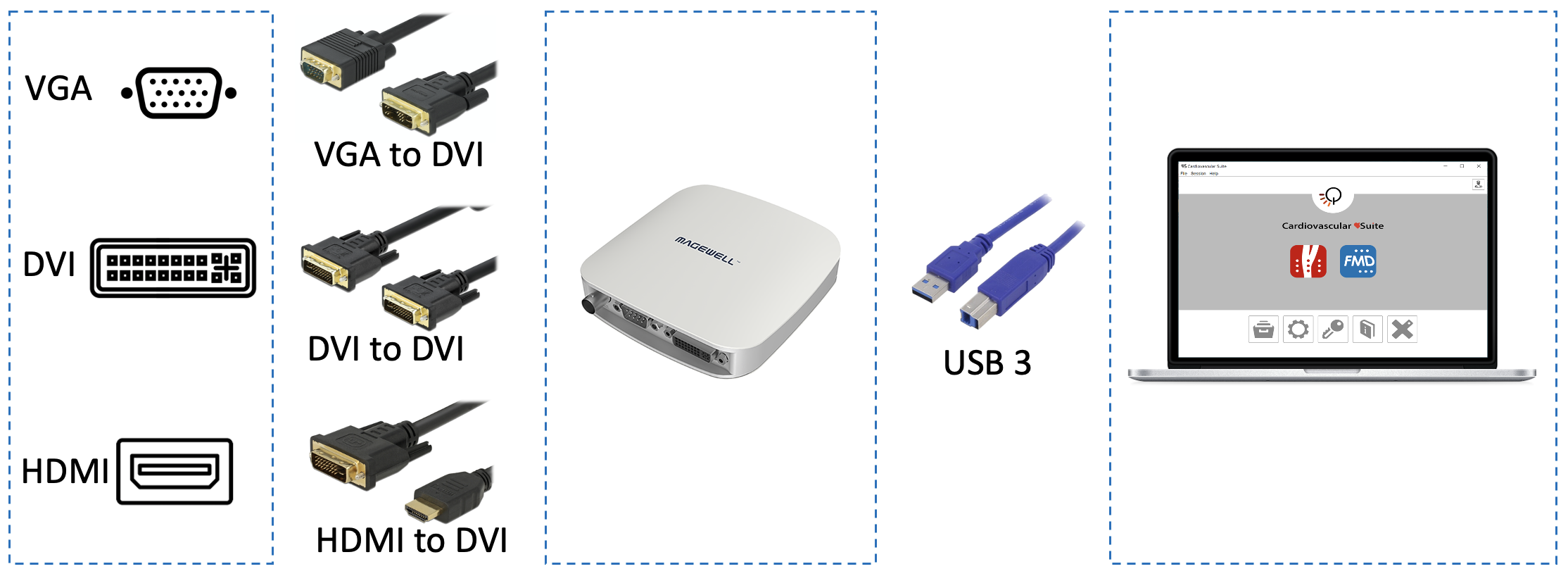
VGA/DVI/HDMI video outputsIf the ultrasound device has a VGA, DVI or HDMI output (see next figure for reference), one of these outputs should be used to connect your ultrasound machine to the Magewell USB Capture AIO.
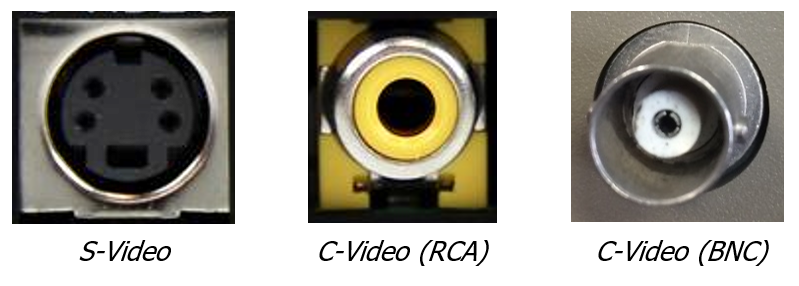
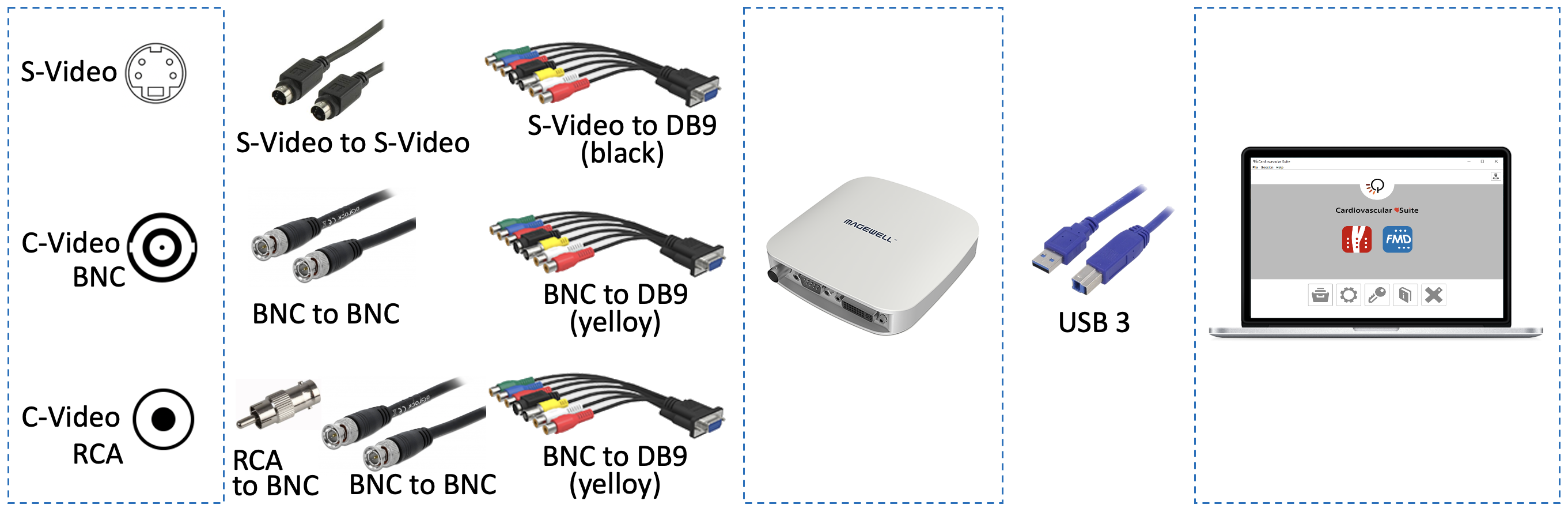
Legacy video standard outputsIf the ultrasound device has a “legacy” (S-Video or C-Video) video standard output (see next figure for reference), the ultrasound machine can be connected to the Magewell USB Capture AIO through the DB9 adapter.
Detail of the connections based on the output video format:
For information on the availability and the standard of the video output, please contact the manufacturer of the ultrasound system. For additional technical information on how to connect the computer to the ultrasound apparatus and on the compatible video standards, please contact us at support@quipu.eu
|

| Sv translation | ||||||||||||||||||||||||||
|---|---|---|---|---|---|---|---|---|---|---|---|---|---|---|---|---|---|---|---|---|---|---|---|---|---|---|
| ||||||||||||||||||||||||||
Per collegare il computer all'ecografo ed effettuare analisi in tempo reale è necessario un dispositivo di acquisizione video. Quipu consiglia due dispositivi USB, Epiphan AV.io HD o Magewell USB Capture AIO. Se L'ecografo ha un'uscita di tipo VGA/DVI/HDMI (vedi la figura seguente), suggeriamo di connettere l'ecografo al computer tramite il dispositivo di acquisizione videoEpiphan AV.io HD o Magewell USB Capture AIO (clicca qui per maggiori informazioni).
Per informazioni sulla disponibilità e sullo standard dell'uscita video, contattare il fabbricante dell'ecografo. Per ulteriori informazioni tecniche su come collegare il computer all'ecografo e standard video compatibili, contattare il nostro supporto tecnico all'indirizzo support@quipu.eu
|
| Sv translation | ||||||||||||||||||||||||||
|---|---|---|---|---|---|---|---|---|---|---|---|---|---|---|---|---|---|---|---|---|---|---|---|---|---|---|
| ||||||||||||||||||||||||||
Vous avez besoin d'un appareil de capture vidéo pour connecter l'ordinateur à l'échographe et effectuer une analyse en temps réel. Quipu recommande deux périphériques USB : l'Epiphan AV.io HD ou le Magewell USB Capture AIO. Si votre échographe dispose d'une sortie VGA/DVI/HDMI (voir la figure suivante pour référence), vous pouvez connecter directement votre échographe à l'ordinateur en utilisant soit l'Epiphan AV.io HD ou le périphérique de capture vidéo Magewell USB Capture AIO. (Voir plus...)
Si votre échographe est doté d'une sortie standard vidéo "héritée" (S-Vidéo ou C-Vidéo) (voir la figure suivante pour référence), vous pouvez connecter directement votre échographe à l'ordinateur à l'aide du Magewell USB Capture AIO. Si vous souhaitez utiliser l'Epiphan AV.io HD, vous devez d'abord convertir la sortie vidéo en VGA, puis faire acquérir le VGA par l'Epiphan AV.io HD. Pour la première conversion vidéo, vous pouvez utiliser n'importe quel convertisseur S-Vidéo vers VGA ou C-Vidéo vers VGA de haute qualité. Nous vous suggérons d'utiliser le StarTech Video to VGA Converter v4.3 (Voir plus ..)
Pour plus d'informations sur la disponibilité et la norme de la sortie vidéo, veuillez contacter le fabricant de l'échographe. Pour plus d'informations techniques sur la façon de connecter l'ordinateur à l'appareil à ultrasons et sur les normes vidéo compatibles, veuillez nous contacter à support@quipu.eu
|


| Sv translation | ||||||||||||||||||||||||||
|---|---|---|---|---|---|---|---|---|---|---|---|---|---|---|---|---|---|---|---|---|---|---|---|---|---|---|
| ||||||||||||||||||||||||||
You need a video capture device to connect the computer with the ultrasound system and perform real-time analysis. Quipu recommends two USB devices: the Epiphan AV.io HD or the Magewell USB Capture AIO. If your ultrasound machine has a VGA/DVI/HDMI output (see next figure for reference), you can directly connect your ultrasound machine to the computer by using either the Epiphan AV.io HD or the Magewell USB Capture AIO video capture device. (See more...) If your ultrasound machine has a "legacy" video standard (S-Video or C-Video) output (see next figure for reference), you can directly connect your ultrasound machine to the computer by using the Magewell USB Capture AIO. If you want to use the Epiphan AV.io HD, you must first convert the video output to VGA, and then to acquire the VGA by the Epiphan AV.io HD. For the first video conversion, you can use any high-quality S-Video to VGA or C-Video to VGA converter. We suggest using the StarTech Video to VGA Converter v4.3 (See more ..)
For information on the availability and the standard of the video output, please contact the manufacturer of the ultrasound system. For additional technical information on how to connect the computer to the ultrasound apparatus and on the compatible video standards, please contact us at support@quipu.eu
|