| Sv translation | ||
|---|---|---|
| ||
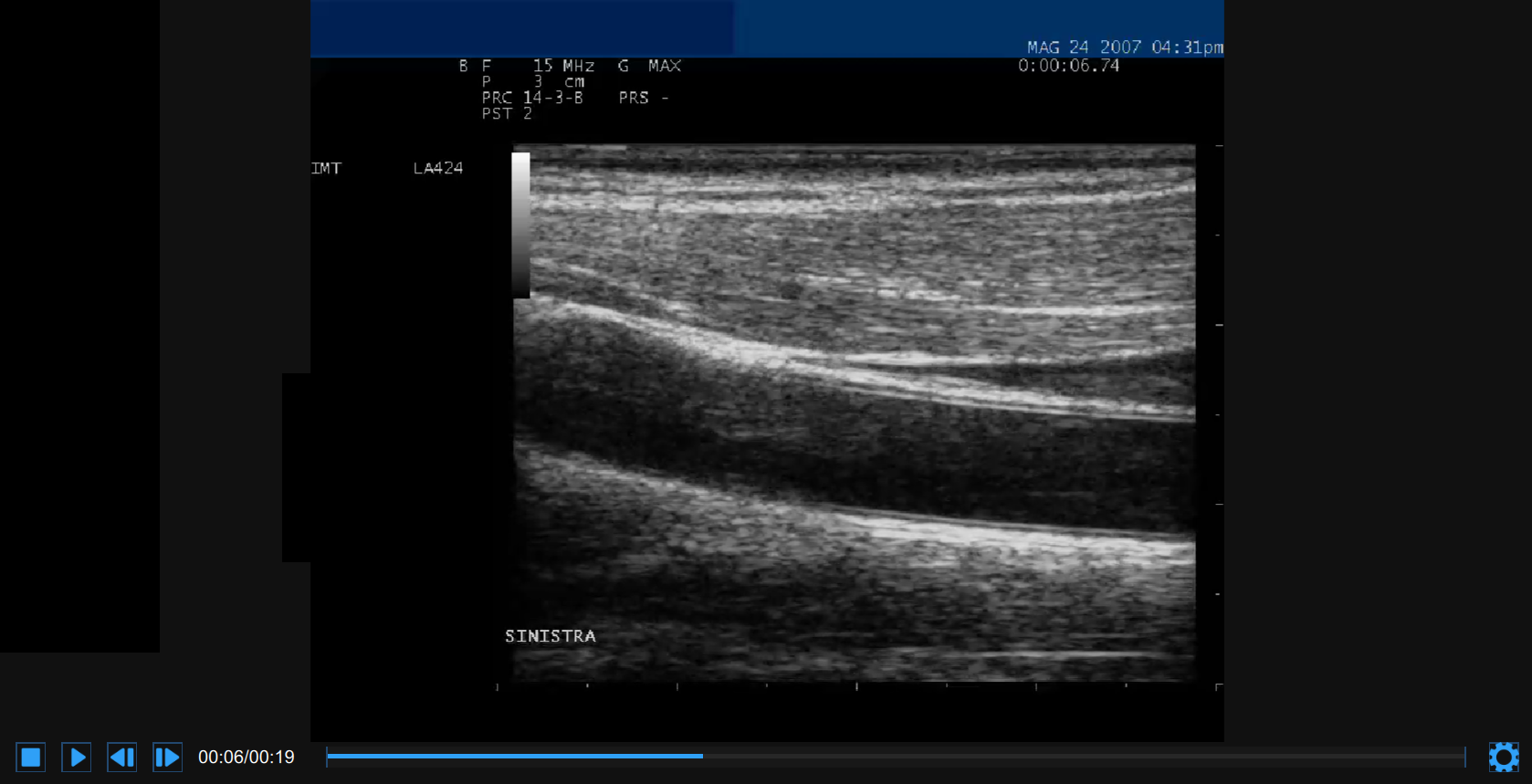
The video and the images are displayed in a player like in the following figure.
At the bottom of the video and image player, a control bar is present. The control bar contains different controls if the source is online or offline, and if a video or an image is played. Control bar - online The control bar contains the elapsed time and the Setting
Control bar - offline video The control bar contains controls to manage the playback of a movie (Stop
Control bar - offline image The control bar contains the Setting
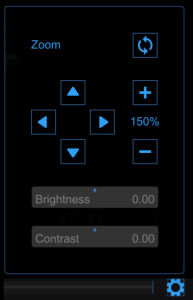
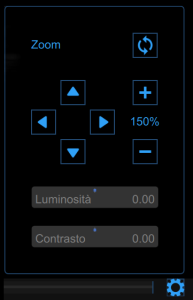
Video and image settingsClick on the Setting
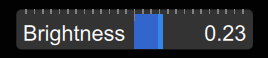
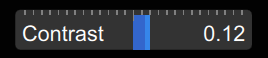
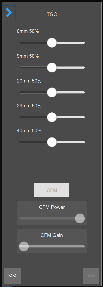
Click the Zoom in Click the Move up Click the Reset zoom button Drag the brightness slider Drag the contrast slider Specific Ultrasound Scanner settingsClick on the Ultrasound Setting button to display the Ultrasound Settings Panels.
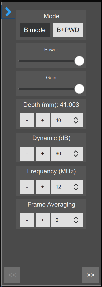
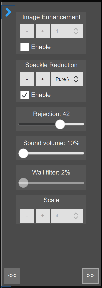
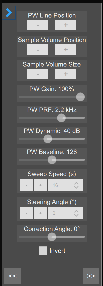
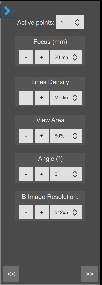
These panels contains all the controls that are necessary to set the ultrasound scanner. Mode Selector: this selector switch between B-Mode and B+PWD Mode. Depth: set the depth of the image. Dynamic: set the dynamic of the image. Frame Averaging: set the number of frames used for the averaging filter. Image enhancement: set the image enhancement mode (Telemed only). Image enhancement: set the image enhancement mode (Telemed only). |








| Sv translation | ||
|---|---|---|
| ||
Il video e le immagini vengono visualizzati in un player come illustrato nella figura seguente.
Nella parte inferiore del player è presente una barra di controllo. La barra di controllo contiene diversi controlli se la sorgente è online o offline e se viene riprodotto un video o un'immagine. Barra di controllo - online La barra di controllo contiene il tempo trascorso e il pulsante Impostazioni
Barra di controllo - video offline La barra di controllo contiene i controlli per gestire la riproduzione di un video (pulsanti Stop
Barra di controllo - immagine offline La barra di controllo contiene il pulsante Impostazioni
Impostazioni video e immagineFai clic sul pulsante Impostazioni
Fai clic sui pulsanti Aumenta zoom Fare clic sul pulsante Sposta su Fare clic sul pulsante Ripristina zoom Trascina il cursore della luminosità Trascina il cursore del contrasto |

...