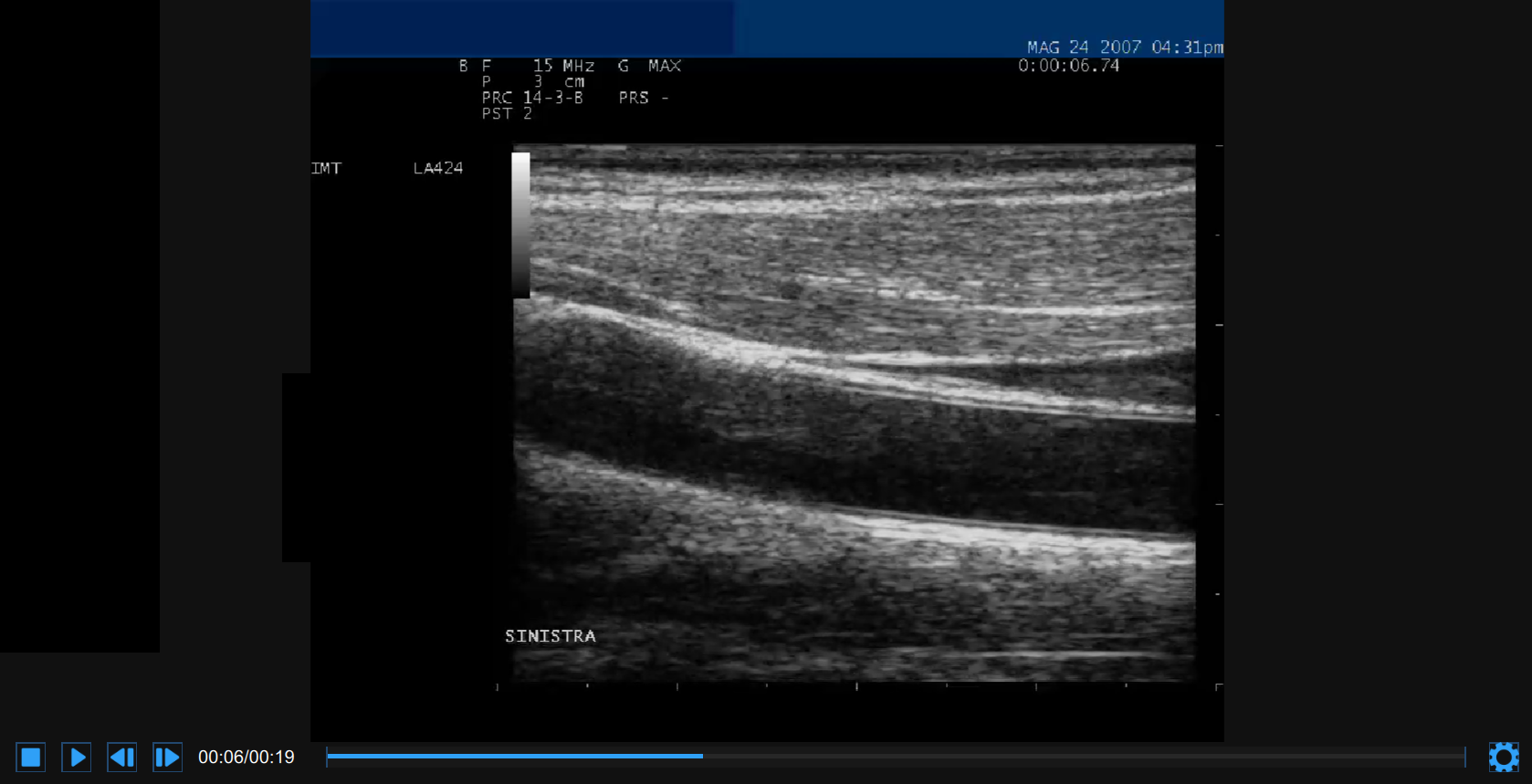
The video and the images are displayed in a player like in the following figure.
At the bottom of the video and image player, a control bar is present. The control bar contains different controls if the source is online or offline, and if a video or an image is played.
Control bar - online
The control bar contains the elapsed time, the Setting  button and, in case one of the specific ultrasound devices is connected, the Ultrasound Settings button.

Control bar - offline video
The control bar contains controls to manage the playback of a movie (Stop , Play
 /Pause
 , Step backward
  and Step forward
  buttons), the current and total time, and the Setting button.

Control bar - offline image
The control bar contains the Setting button.

Click on the Setting button on the right of the video control bar. The Zoom controls and the Brightness and Contrast sliders will be shown.
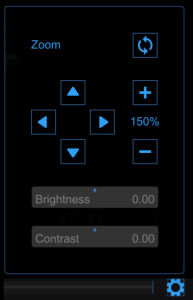
Click the Zoom in  / Zoom out
  buttons to zoom in and out the image.
Click the Move up  / Move down
  / Move Left
  / Move right
  button to move up / down / left / right the zoomed image.
Click the Reset zoom button  to reset the image zoom.
Drag the brightness slider 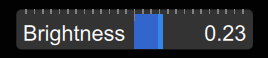 to adjust the brightness of the image.
Drag the contrast slider 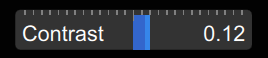 to adjust the contrast of the image.
Click on the Ultrasound Setting button to display the Ultrasound Settings Panels.
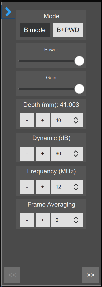
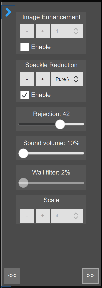
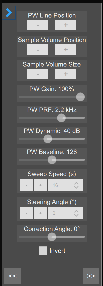
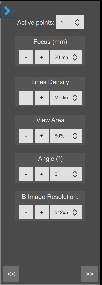
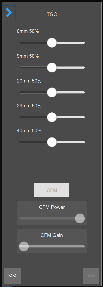
These panels contains all the controls that are necessary to set the ultrasound scanner.
Mode Selector: this selector switch between B-Mode and B+PWD Mode.
Depth: set the depth of the image.
Dynamic: set the dynamic of the image.
Frame Averaging: set the number of frames used for the averaging filter.
Image enhancement: set the image enhancement mode (Telemed only).
Speckle reduction: set the speckle reduction mode (Telemed only).
Rejection: set the rejection factor (Telemed only).
TO BE COMPLETED