Studies management
In the Studies and Documents panel, it is possible to manage studies and documents.
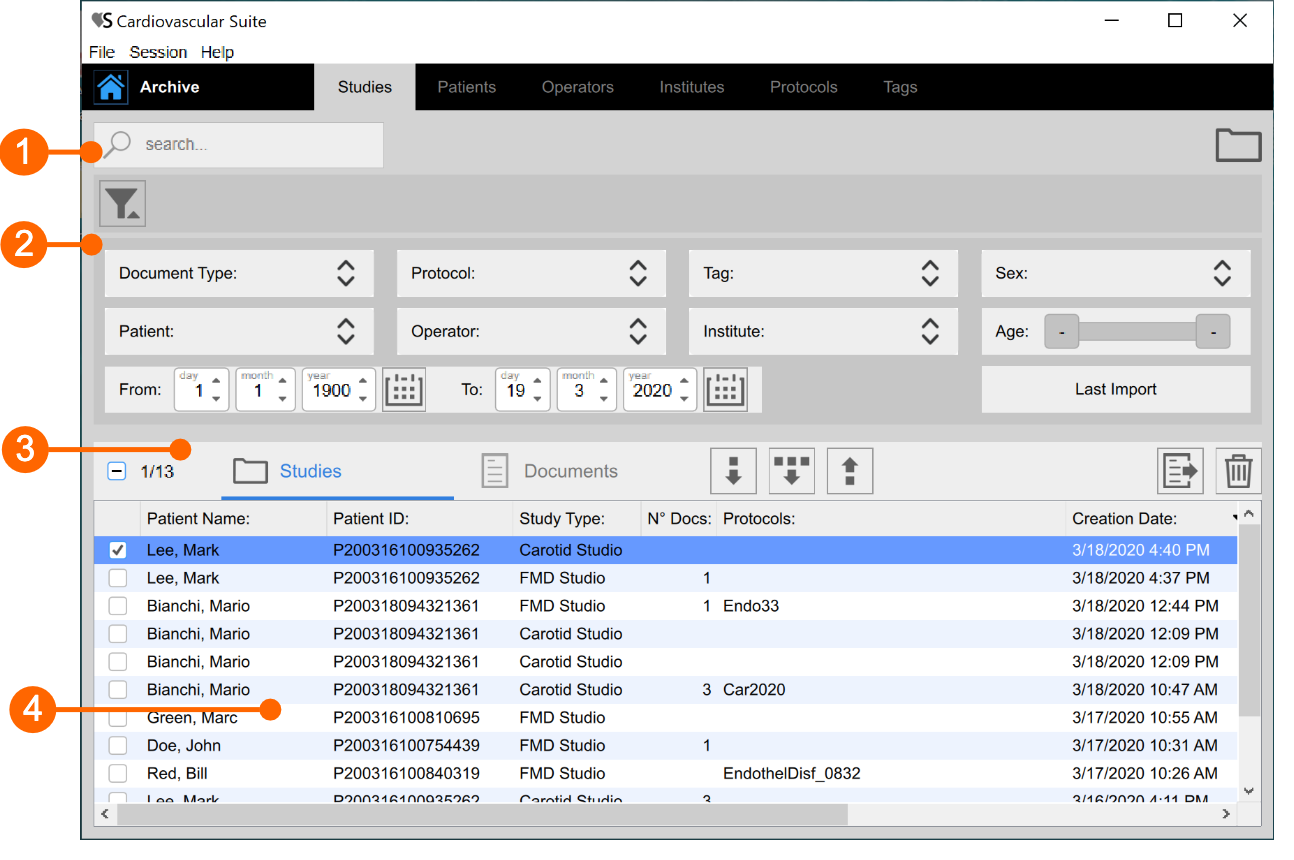
This panel is made up by a search field (1), the filter management panel (2), the control buttons (3) and a table (4) for showing the study list (or the document list), depending on the selected tab ( or
or  ) from the control buttons.
Searching and filtering
It is possible to perform a textual search in the Studies or Documents table thanks to the search field on the top (1).
The filter management panel (2) allows the possibility to add and remove filters. By clicking on the  icon, the following filters can be added:
- Document type
- Patient
- Operator
- Institute
- Patient Sex
- Patient Age
- Patient Birthdate
- Document Tag
- Study Protocol
- Last Imported studies
In addition, it is possible to filter the studies by patient, operator, and institute by going to their panels and double clicking on one of them.
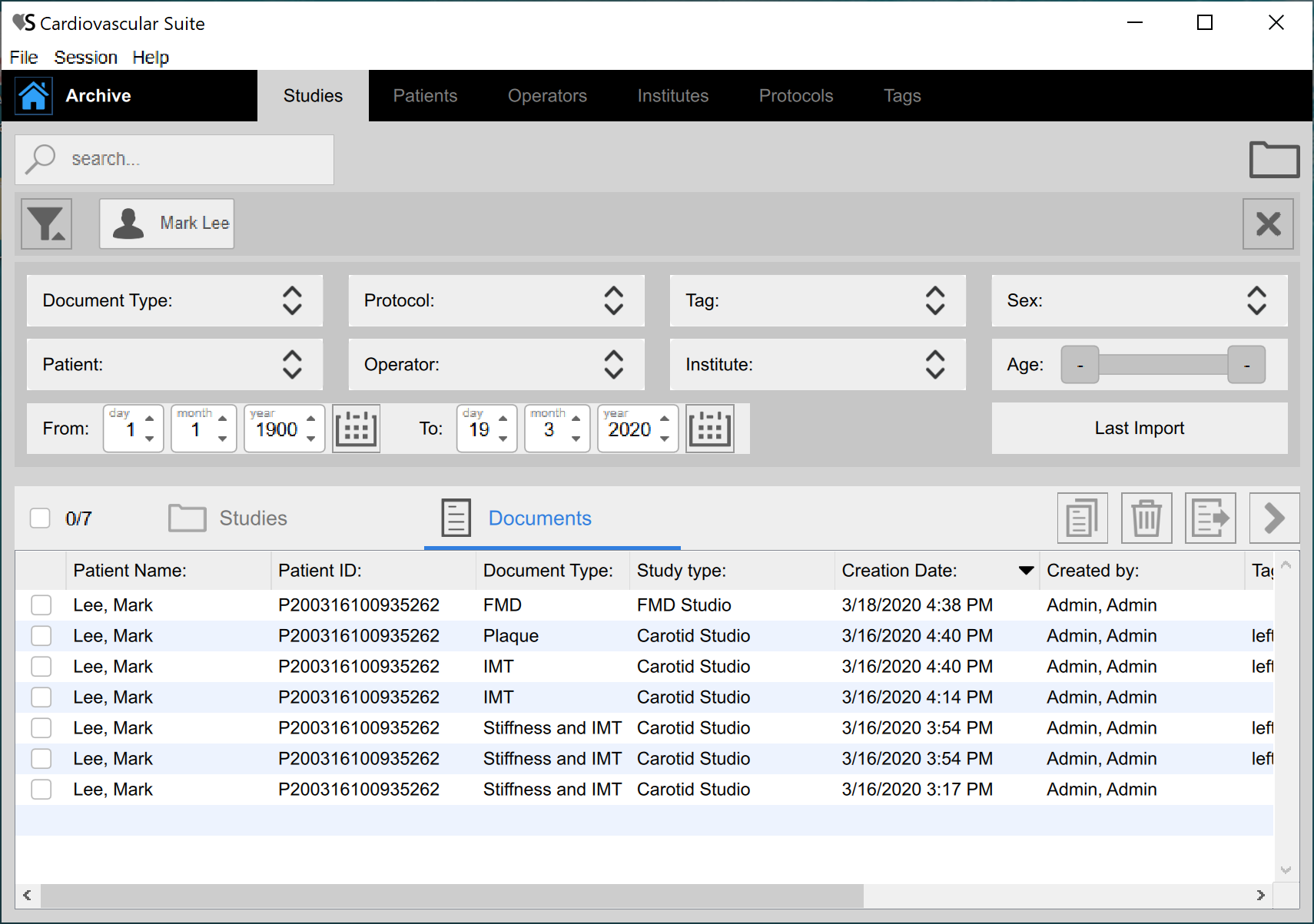
Once the filter panel is visible, it is sufficient to choose one or more filters using the dropdown menu and the table is automatically filtered. It is possible to remove one filter at a time by clicking on it, or to remove all the filters at the same time by clicking on the  icon, as show in the following picture.
Management of Studies Table
Selecting the Studies tab , the Studies table is shown where you can find the list of all the studies performed and stored into the Archive.
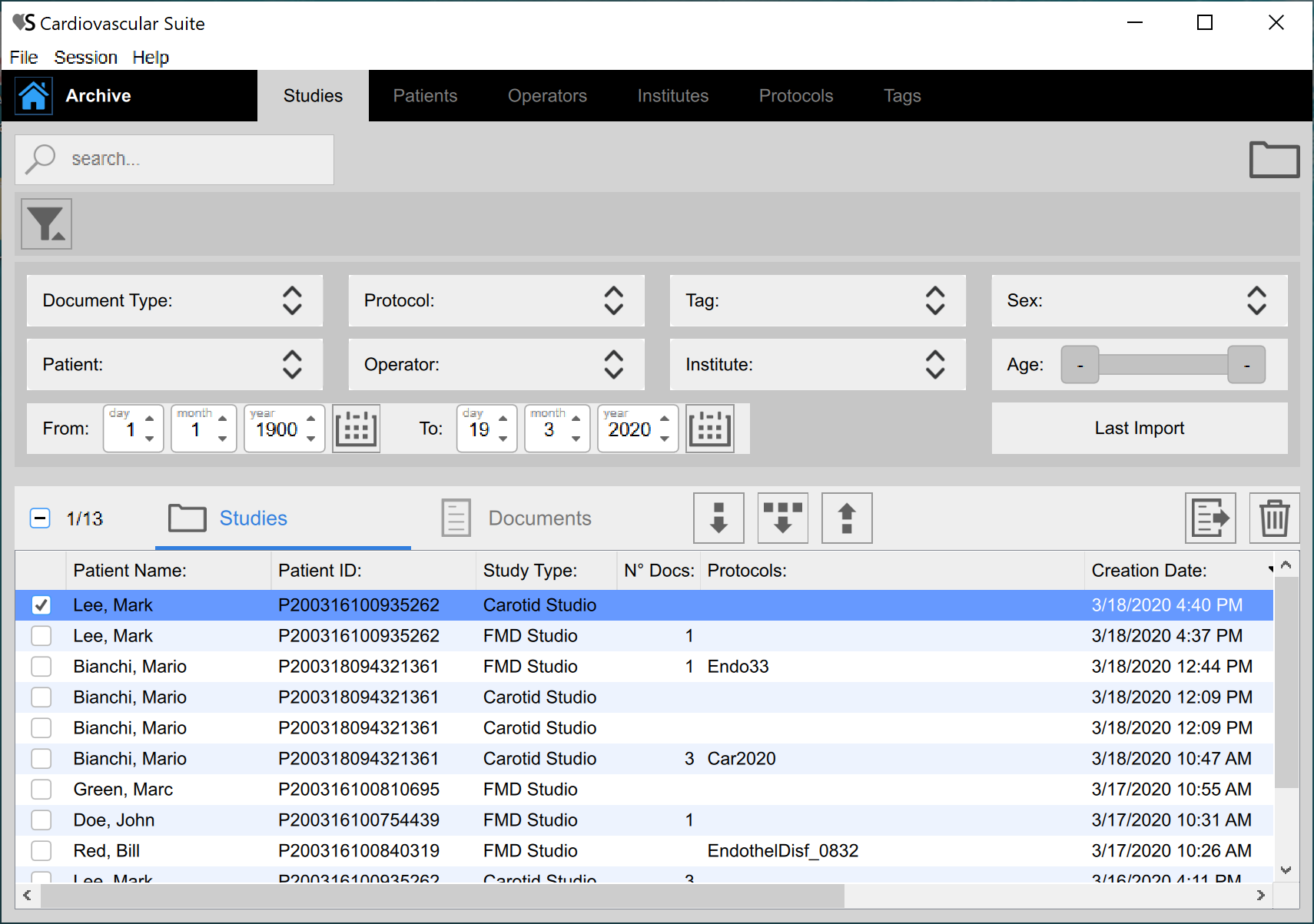
Import a study:
- Click on the Import Study
 button that is placed on the top of the Studies Table.
 - Select the folder that contains the study to be imported, then press Open.
Import more than one study:
- Click on the Multiple Import Study
 button that is placed on the top of the Studies Table.
 - Select the folder that contains the studies to be imported, then select the studied and press Open.
Export a study:
- In table (4), click on the study to be exported.
- Click on the Export Study
 button that is placed on the left of the Studies Table.
 - Select the destination path where you want to save your exported study, then press Save.
A report file in CVS format is created in the destination folder. It contains the details of the exported study.
Delete a study:
- In table (4), click on the study to be deleted.
- Click on the Delete Study
 button that is placed above the Studies Table, on the right.
Multiple selection:
In Studies Table multi-select feature is available. You can select more than one study and perform export and delete operation on selected studies.
In table (4), select the studies through the check-box. The label over the table shows how many studies are selected from the available ones.
After you have selected studies you can export them (clicking on multiple Export  button, placed above the Studies Table) or delete them (clicking on Delete button, placed above the Studies Table, on the right).
Advanced export:
It is possible to export documents of selected study/studies as CSV, TSV or PDF file.
- In table (4), select the study/studies to be exported
- Click on the Export Documents
 button that is placed on the top of Studies Table. A drop-down menu appears:
- Export Document Results: it exports a TSV/CSV file containing information about the study, the document, and the computed results. You can also export a PDF report of the document.
- Export Document Data: it exports a TSV/CSV file containing the results of the study and the instantaneous data.
- Select the destination path where you want to save your exported documents, then press Save.
Study view
It is possible to open the study view by double clicking on it from the Studies Table (4). A new window containing the study ad its files is opened, as shown in the following picture. Some buttons are also available to operate the study:
- Click the next
 or to the previous
  study button to navigate among the studies.
 - Click the Generate study report
 button to create a PDF report of the study (available for Carotid Stdio only, see Study report).
 - Click the Export the Study button to export the current study.
- Click the Delete the Study button to delete the current study.
The study view contains:
- a panel with information regarding the study and the patient (5).
- a panel for adding and removing protocols to the study (6).
- a note text field (7) where it is possible to add comments to the study.
- a media file container (8) which collects all the media files of the study (clicking on the media file icon new window for showing the file is opened).
- a table containing all the study documents and the buttons (9) for managing them.
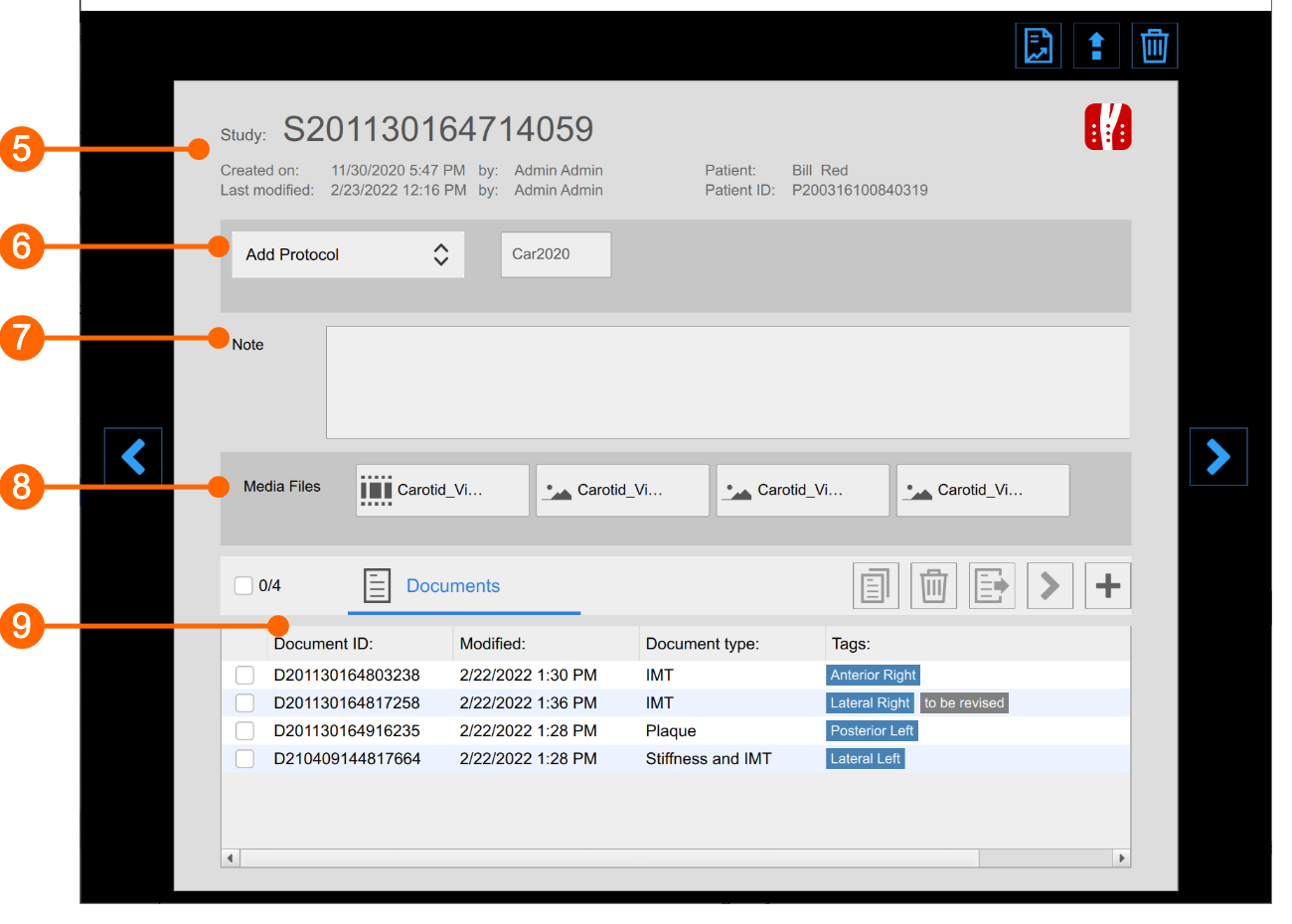
It is possible to click on a document of the table to see some information about the document itself.
From the documents table (9) it is also possible to create a new document related to that study, by clicking on the  button. You can select one or more document and duplicate one of them using the duplicate
  button. For selected documents, it is also possible to export and delete them. In addition, by clicking on the icon it is possible to view the review of that document.
Management of Documents Table
Selecting the Documents tab , the Documents table is shown.
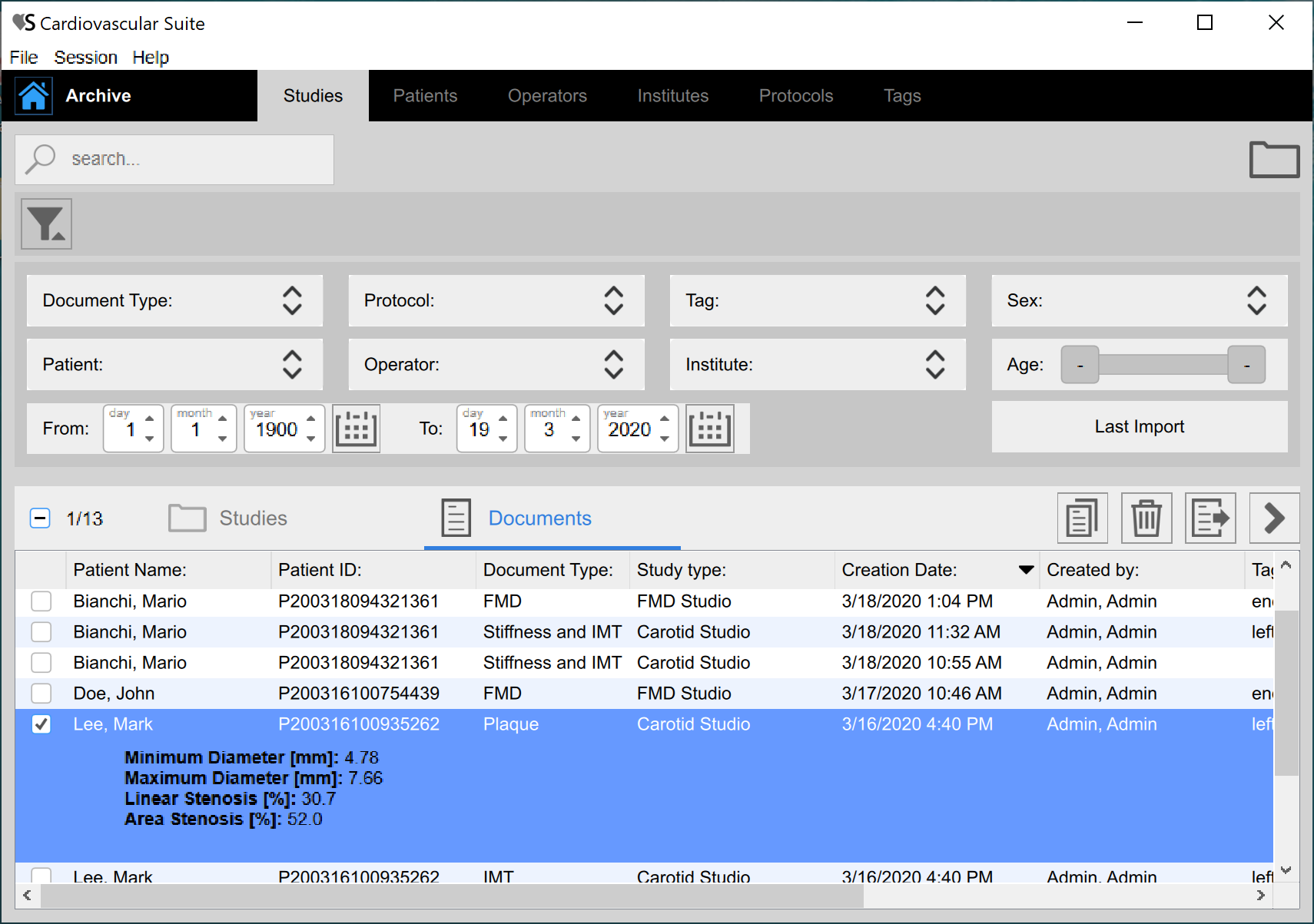
Open a document:
- Click on the document to be open.
- Click on the Go button in document preview and the document will open in the application that created it or,
- Double click on the document to be open.
- The document will open in the application that created it.
Duplicate a document:
- In the Documents table, click on the document to be duplicated.
- Click on the Duplicate Document button placed above the table.
Delete a document:
- In the Documents table, click on the document to be deleted.
- Click on the Delete Document button placed above the table.
Export a document:
It is possible to export one or more documents as CSV, TSV or PDF file.
- In the Documents table, select the document to be exported.
- Click on the Export Document button, placed above the Documents table. A drop-down menu appears:
- Export Document Results: it exports a TSV/CSV file containing information about the study, the document, and the computed results. You can also export a PDF report of the document.
- Export Document Data: it exports a TSV/CSV file containing the results of the study and the instantaneous data.
- Export Aggregated Results (available only if more than a document is selected): it is also possible to export aggregated results of different documents in a single CSV or TSV file (please note that selected studies should all be of the same type).
- Select the destination path where you want to save your exported documents, then press Save.
Multiple selection:
In Documents Table multi-select feature is available. You can select more than one document and perform export and delete operation on selected documents.
In table, select the documents through the check-box. The label over the table shows how many documents are selected from the available ones.
After you have selected documents you can export them (clicking on Export button) or delete them (clicking on Delete button).