Patients management
Allows you to manage patients.
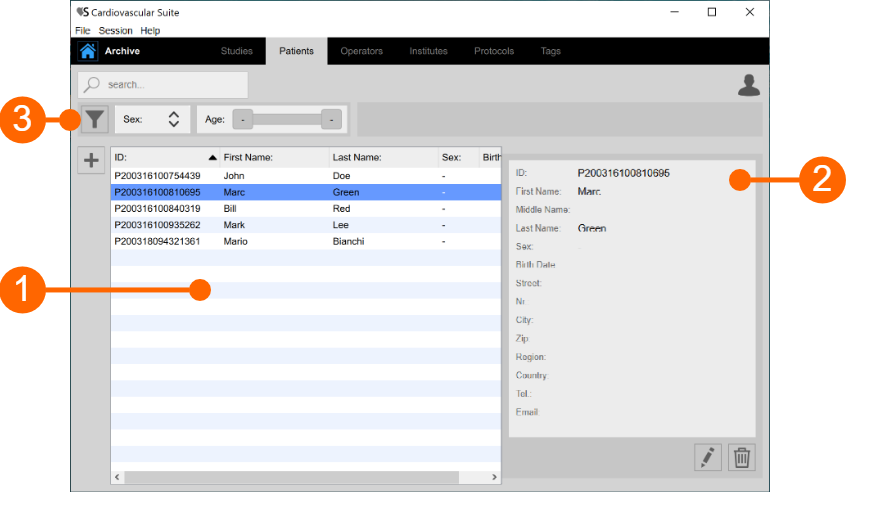
The patient list is given in table (1). Once you select one of patients, detailed information are shown in the frame (2).
In the frame (3) you can perform textual research and add and remove filters. The following filter can be used:
- Sex
- Age
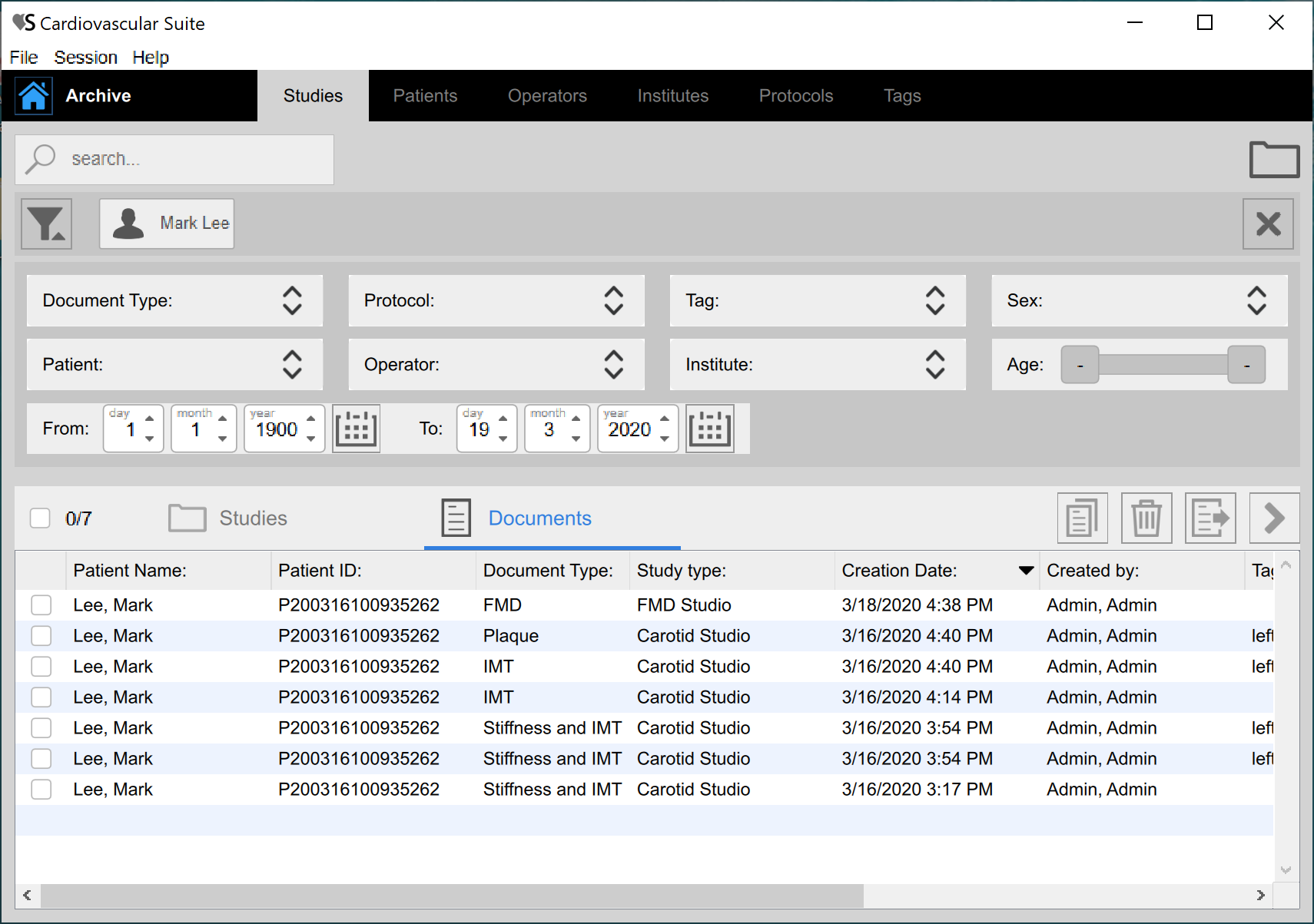
In addition, with a double click on a patient, the list of the study related to that patient is shown in the Studies management window:
Add a new patient:
- Click on the Add New Patient
 button.
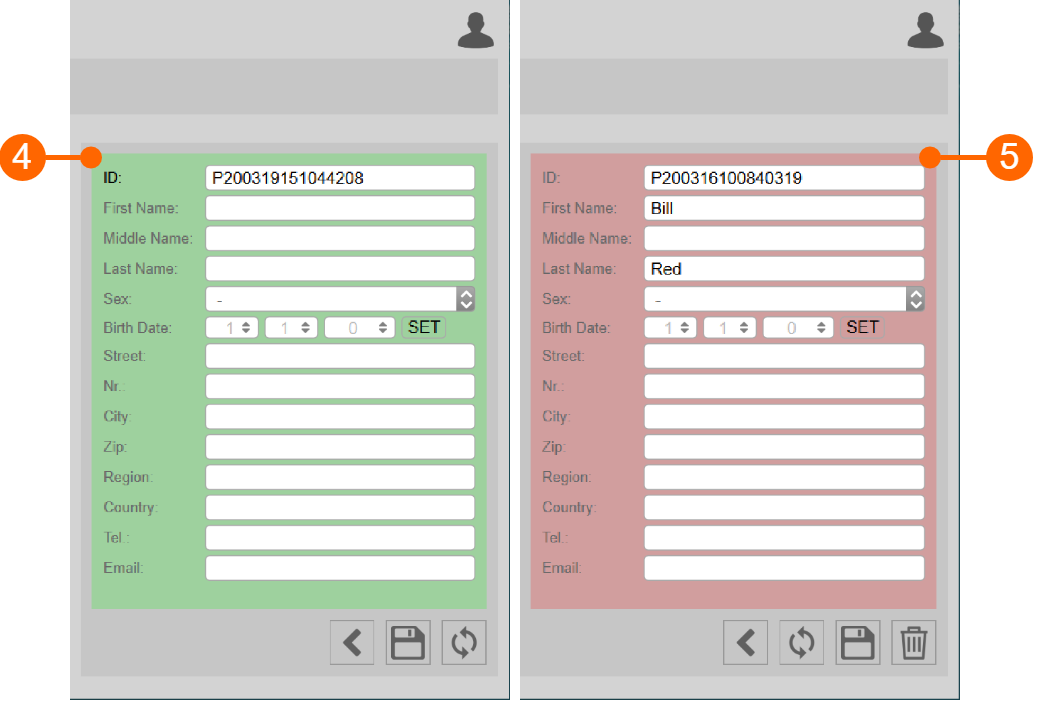
 - In the new patient frame (4), enter the patient data. The only mandatory field is the patient ID and the software automatically creates a new one.
- Click on the Save
 button to save the patient data.
Modify a patient:
- Select the patient to be modified.
- Click on the Edit
 button.
 - Modify the patient data in the frame (5).
- Click on the Save button to save the data.
- You can use the Restore
 button to restore data.
Delete a patient:
- Select the patient to be deleted.
- Click on the Delete
 button.
 - Confirm deletion with the OK button.
You cannot delete a patient that is associated with existing studies.